Assigning Rules to Pay Groups
This section will demonstrate how to assign rules to Pay Groups. Pay Groups are the logical layer between employees and the rules. You can create as many Pay Groups as needed to handle the differences in rules across the employee population.
Rules are designed to be shared across Pay Groups, thus the desire to parameterize values which may differ across your workforce without changing the logic of the rules. Further, you can share some rules, such as core setup, overtime and other non-discretionary items, while attaching discretionary rules as needed.
Open the Pay Groups app under Payroll, or use app search to locate it.
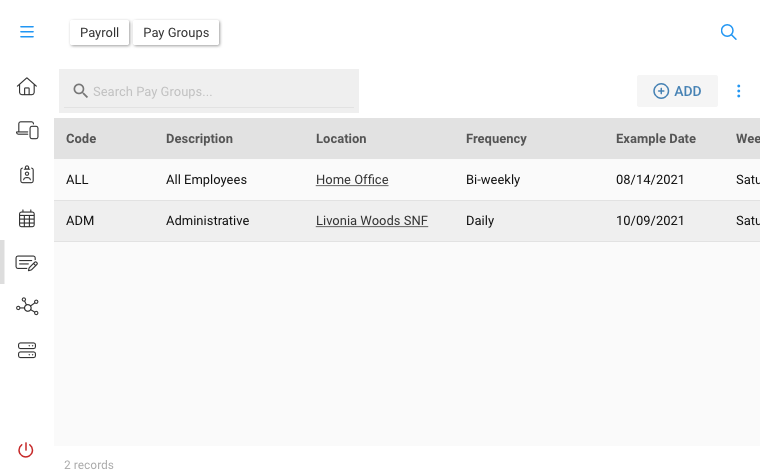
Pay Group Details
In addition to referencing a list of rules, a Pay Group defines the following pay-related items:
| Item | Description |
|---|---|
| Pay Frequency | Choose the payroll frequency for this group (e.g. Weekly , Bi-Weekly, ..) |
| Week Ends On | Choose the day of the week to end calculations. For example, if you have a bi-weekly pay period that ends every other Saturday, then Saturday is your "Week Ends On". |
| Example Date | The Example Date is the end of any prior (or future) pay period. This is used to get in-sync with your current payroll cycle. |
When choosing the Week Ends On and Example Date above, it is important to choose the day / dates which correspond to the end of the typical pay period--not the ultimate payroll processing date. For example, if your weekly or bi-weekly pay period ends on Saturday, and your effective processing and subsequent pay date to the employees is the following Thursday, the Pay Group values correspond to the Saturday date, not Thursday.
Pay Group Rules
Using the action bar, navigate to the Rules card. This is where all rules for the selected Pay Group will be managed, including adding of rules, backfilling published parameters and adding filters.
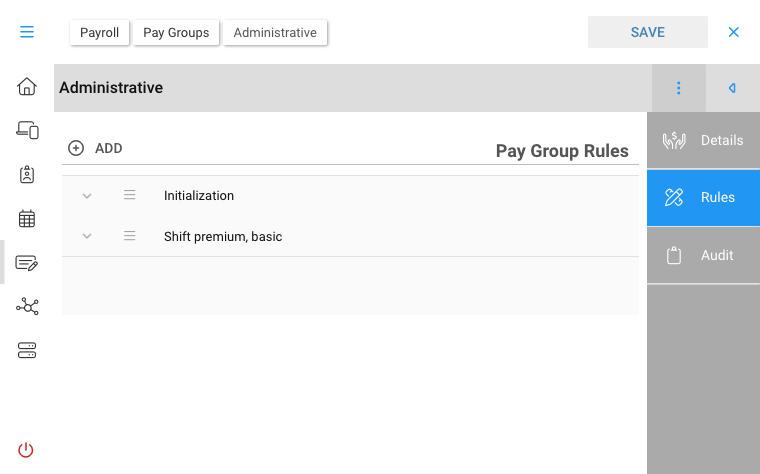
Click or tap Add to add a rule to the selected Pay Group Choose one or more rules from the select list, then press ADD to include in your Pay Group
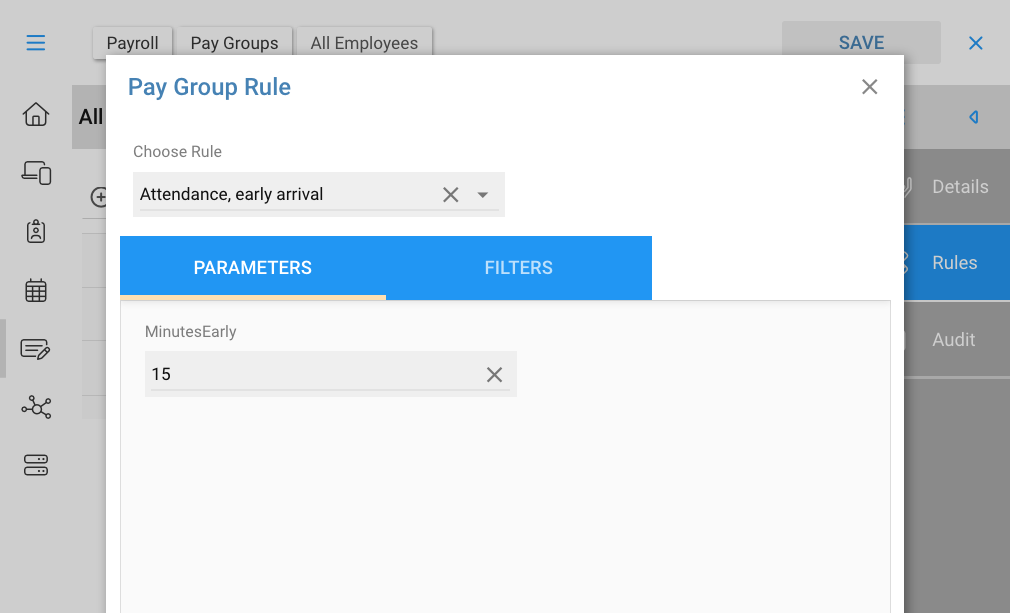
Parameters
You will see the Default Value for any rule parameters which have declared them, otherwise provide values for each rule paramter. In this case, we can choose the default 15 for the number of minutes before a shift as the threshold to consider a punch as "early".
Filters
One very useful feature in Pay Groups is the ability to apply filters to rules. Filters allow you to further limit who within the Pay Group will receive the rule. This is much easier and more flexible than embedding similar logic within the rule.
For example, in our "Attendance, Early Arrival" rule which we've been using in these sections, testing the punch's action for "IN" is fundamental to the concept of the rule: if its not an "IN" punch, then the rules makes no sense, so we embed that into the rule statements.
When looking at your workforce, however, you might decide that only some departments or positions should have the "early arrival" exception tracked; say your warehouse and delivery, but not the office. There are two ways you can handle this scenario:
-
Separate Warehouse, Delivery from Office by using two different Pay Groups, then assign the "Attendance, Early Arrival" rule to the Warehouse & Delivery group, but not to the Office group.
-
Keep everyone in the same group, but use a filter on this rule to select which departments it applies to. The rule itself if not changed, but it will be now be selectively executed only if a worker passes the filters.
There are a number of reasons why you might want separate groups in the above scenario, as the number of rule differences may make management easier. But consider if you needed more granularity and wanted only specific positions in one or more departments; now having separate groups would become cumbersome, so the filters go along way towards simplifying the overall setup.
Choose the Filters action while adding a rule to add or maintain filters Choose Add to add a new filter
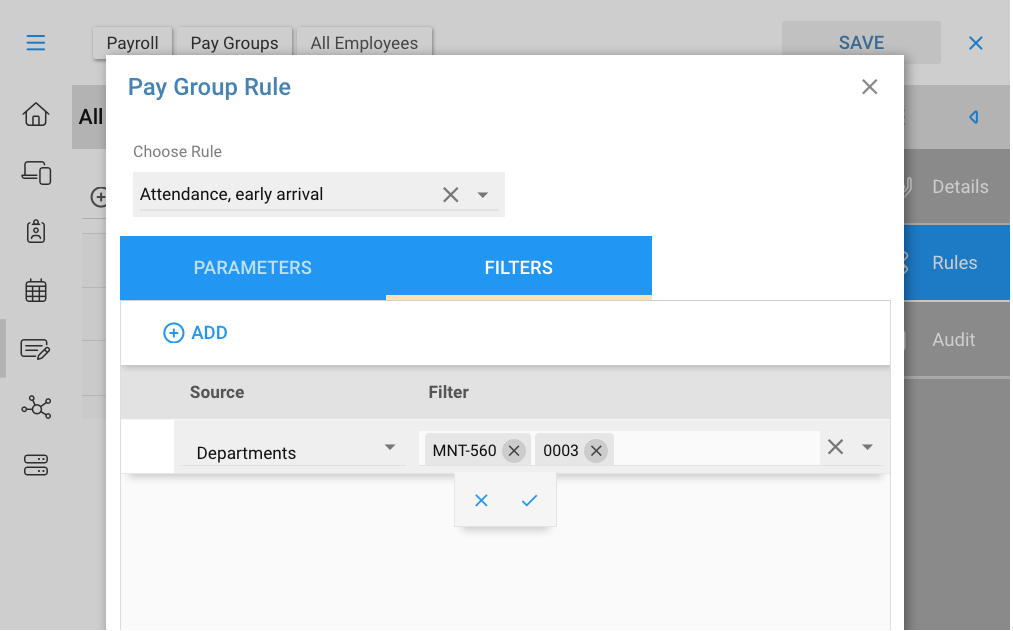
You can combine filtes across multiple categories, such as combining Department with Position, Cost Center or Punch Actions (or some other datasource to be created). Use caution to insure you don't select competing values, such as positions that don't exist in a selected department.
Using filters, you are also able to add the same rule to a Pay Group multiple times, each instance would have a different set of filters and parameters. Going back to the above example, suppose the Delivery department policy is that early arrival is 15 minutes, while Warehouse is allowed to arrive 30 min early. In this case add the same rule twice, and in each case set the filters and parameters as needed for the selected demographic.
Below is a more complete example of a rule which contains a number of rule parameters. In this case the rule handles shift premium, so includes times, days of the week, rate table and earnings code.

The next section reviews rule best practices.